01 Start
Getting started
Install ShanFlow, connect Claude Code or Codex, and send your first task. This takes about two minutes.
ShanFlow doesn't include model access. You need a Claude plan or an Anthropic API key for Claude Code, or a ChatGPT plan or an OpenAI API key for Codex. You pay those providers directly. One engine is enough; you can connect both.
System requirements#
| Need | Details |
|---|---|
| macOS | macOS 13 Ventura or later, Apple Silicon (M1 or later). Intel Macs aren't supported yet. |
| Windows | Windows 10 22H2 or Windows 11, x64. |
| Linux | Not supported yet. |
| Engine | A Claude or Codex login (see above). |
| Internet | Needed for the agent. ShanFlow also checks in with our server at least every 7 days (see License and account). |
| Git | Optional. The Changes panel, commits and worktrees need it. |
Install on macOS#
- Download the
.dmgfrom the download page and open it. - Drag ShanFlow to Applications.
- Open ShanFlow from Applications or Spotlight.
The first time you open it, macOS asks whether you want to open an app downloaded from the internet. Choose Open.
If macOS says it can't verify the app instead, the build isn't signed for your machine. Open System Settings, go to Privacy & Security, scroll to the message about ShanFlow, and choose Open Anyway. Only do this for a download from the official download page.
Install on Windows#
- Download the installer (
.exe) from the download page and run it. - If Windows shows Windows protected your PC (SmartScreen), check that the publisher is correct, choose More info, then Run anyway.
- Open ShanFlow from the Start menu when the installer finishes.
To update later, download the new version from the download page and install it over this one. Your sessions and settings stay.
Connect an engine#
ShanFlow runs the Claude Code and Codex agents. It doesn't sign you in to Claude or ChatGPT itself. It uses the login you already have on this computer.
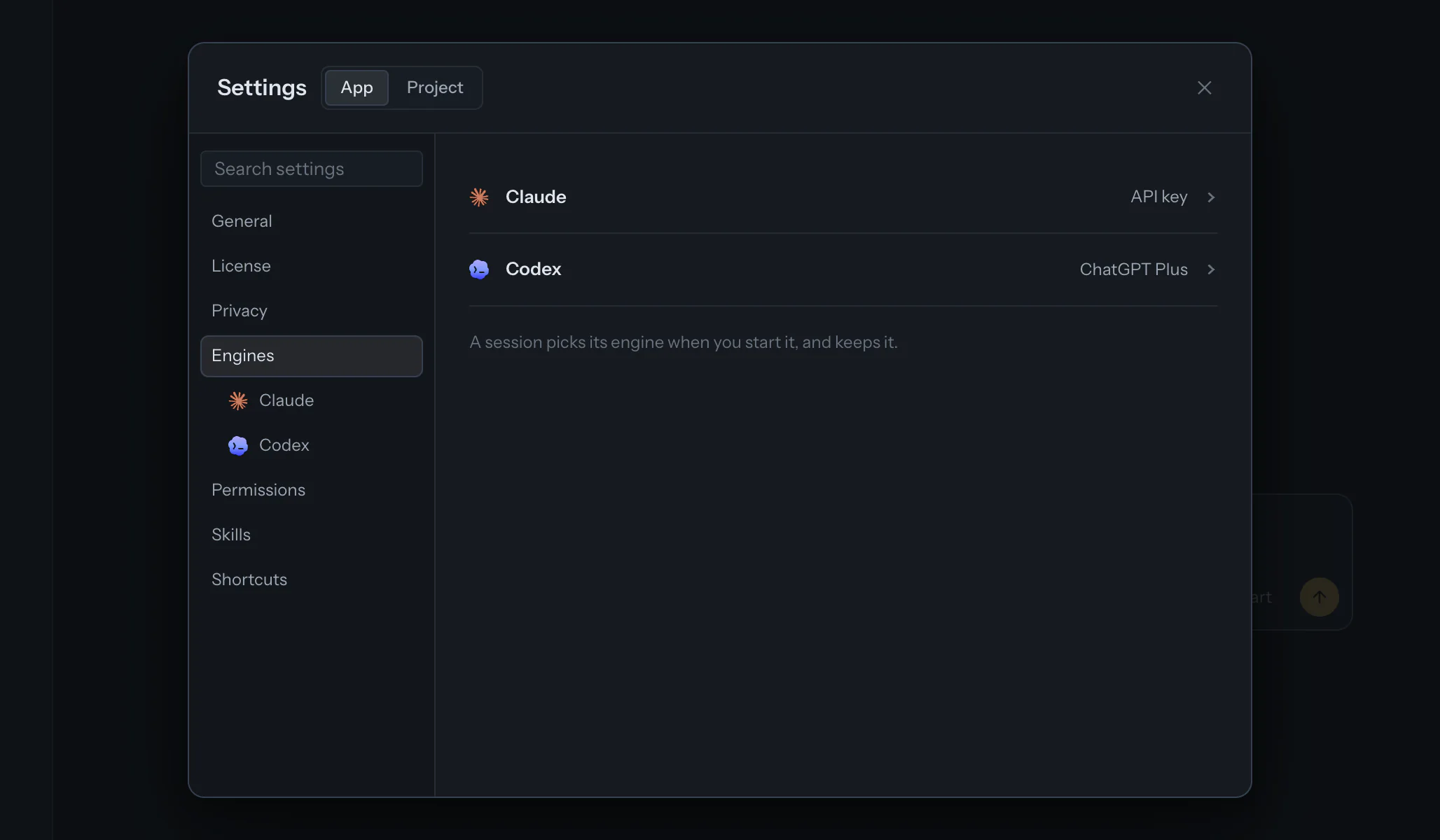
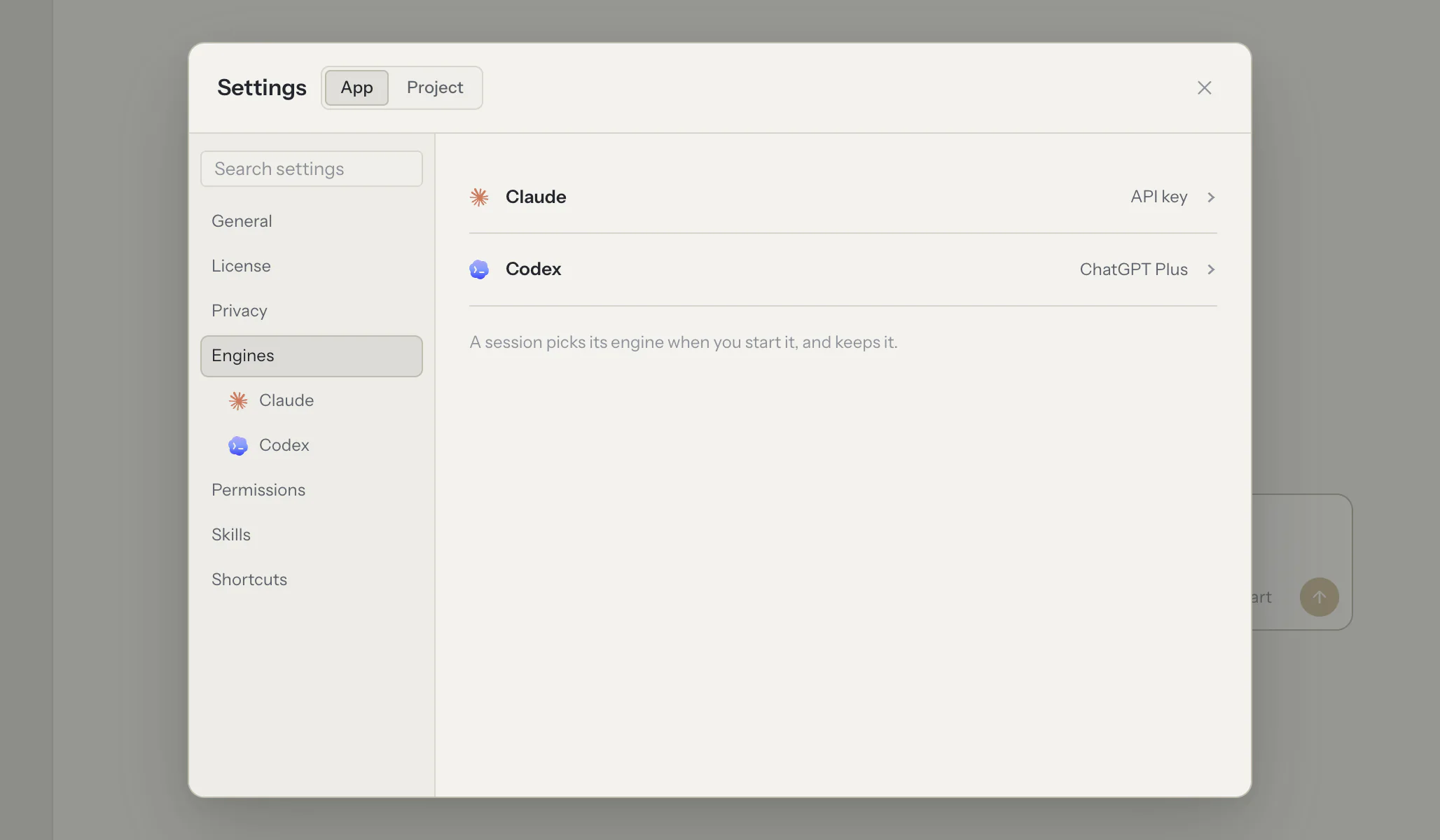
Claude Code. Claude ships inside ShanFlow, so there is nothing to install.
- If you haven't used Claude Code before, sign in once with Claude Code in a terminal: run
claude, then/login. Use your Claude Pro, Max or Team account, or an Anthropic API key. - Open ShanFlow's settings with ⌘, (macOS) / Ctrl+, (Windows) and choose Engines.
- The Claude row shows your plan, or API key. That means it's connected.
If a session later stops with Session expired — run /login, then retry, sign in again the same way and retry.
Codex. Codex is separate software. ShanFlow finds it if the Codex app is installed or codex is on your path.
- Install Codex if you haven't. The Codex page in Settings › Engines links to the install steps when it can't find it.
- Sign in with Codex's own tools. Run
codex loginfor a ChatGPT account, orcodex login --with-api-keyfor an OpenAI API key. Signing in from the Codex app also works. - In Settings › Engines, open Codex and choose Check again. The row shows your plan when it's ready.
ShanFlow uses that login from ~/.codex and never sees or stores your credentials.
If you can't start a session because an engine isn't ready, the New session screen tells you why. See Troubleshooting.
Add your first project#
A project is a folder on your computer, usually the root of a repository.
- On first launch, choose Choose a folder…, or drag a folder onto the window.
- Pick the folder.
The project appears in the sidebar. ShanFlow also lists any sessions you already have for that folder from the Claude Code terminal or Codex (see Core concepts).
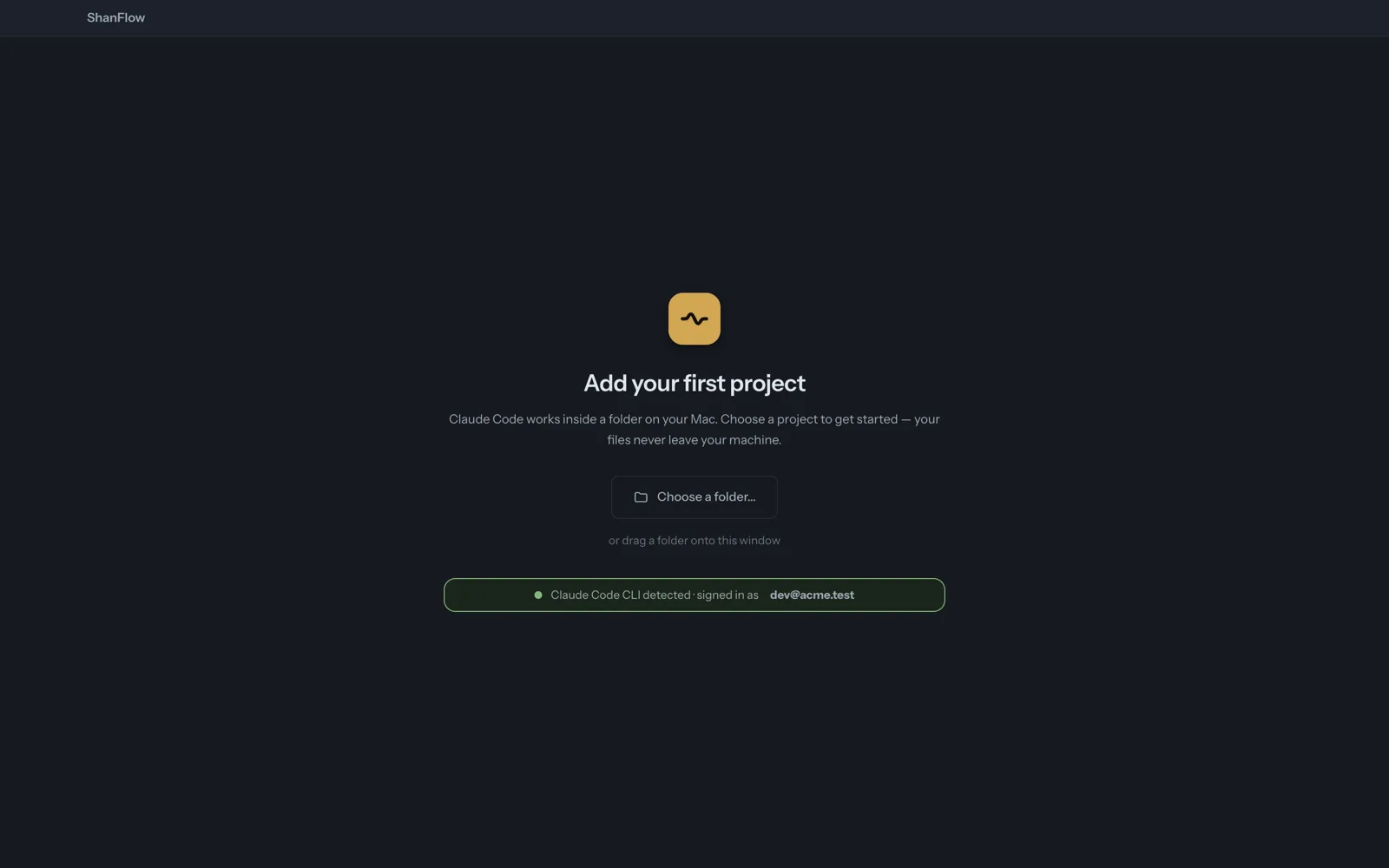
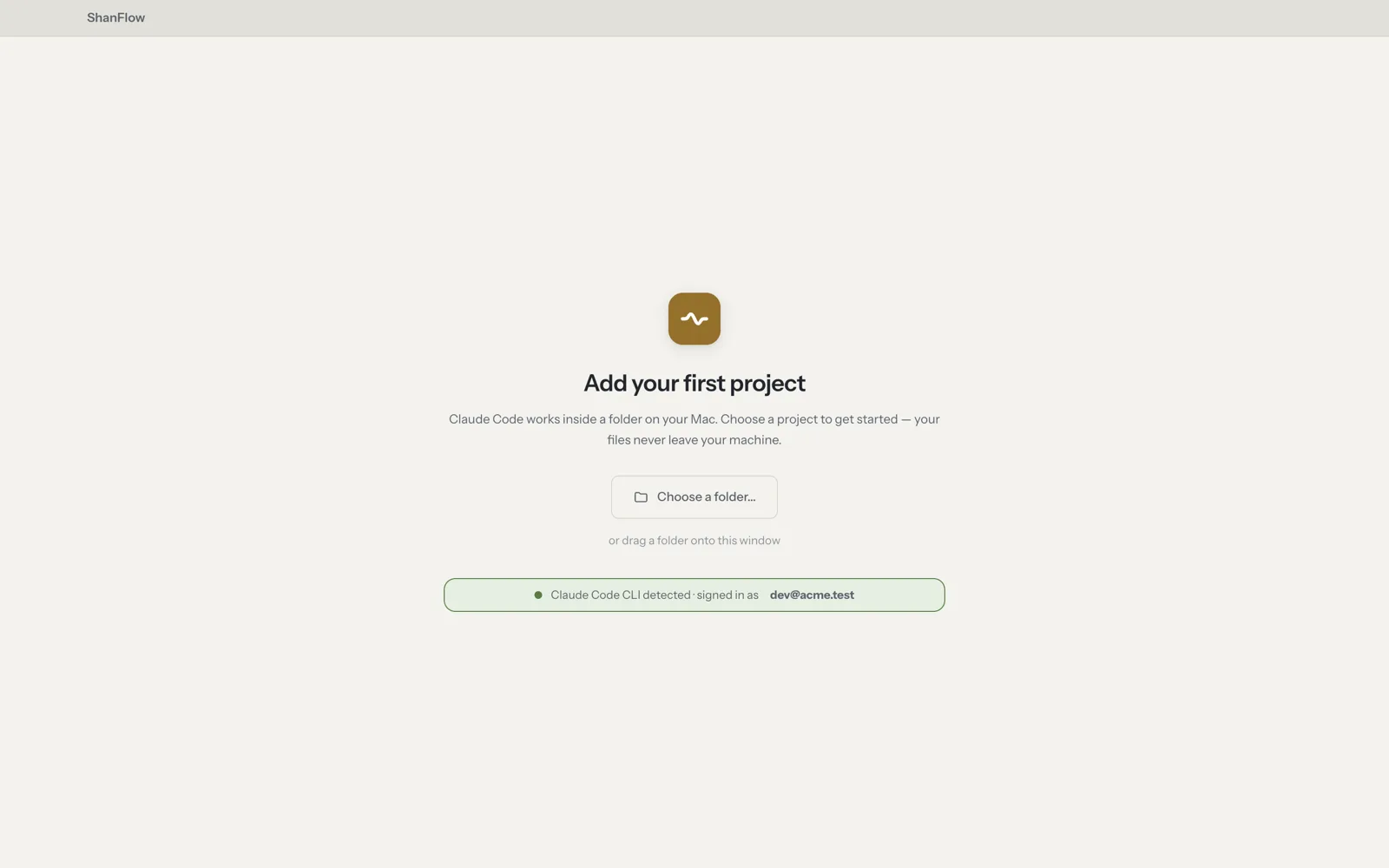
To add more projects later, use the + next to Projects in the sidebar, or ⇧⌘O (macOS) / Ctrl+Shift+O (Windows).
Start your first session#
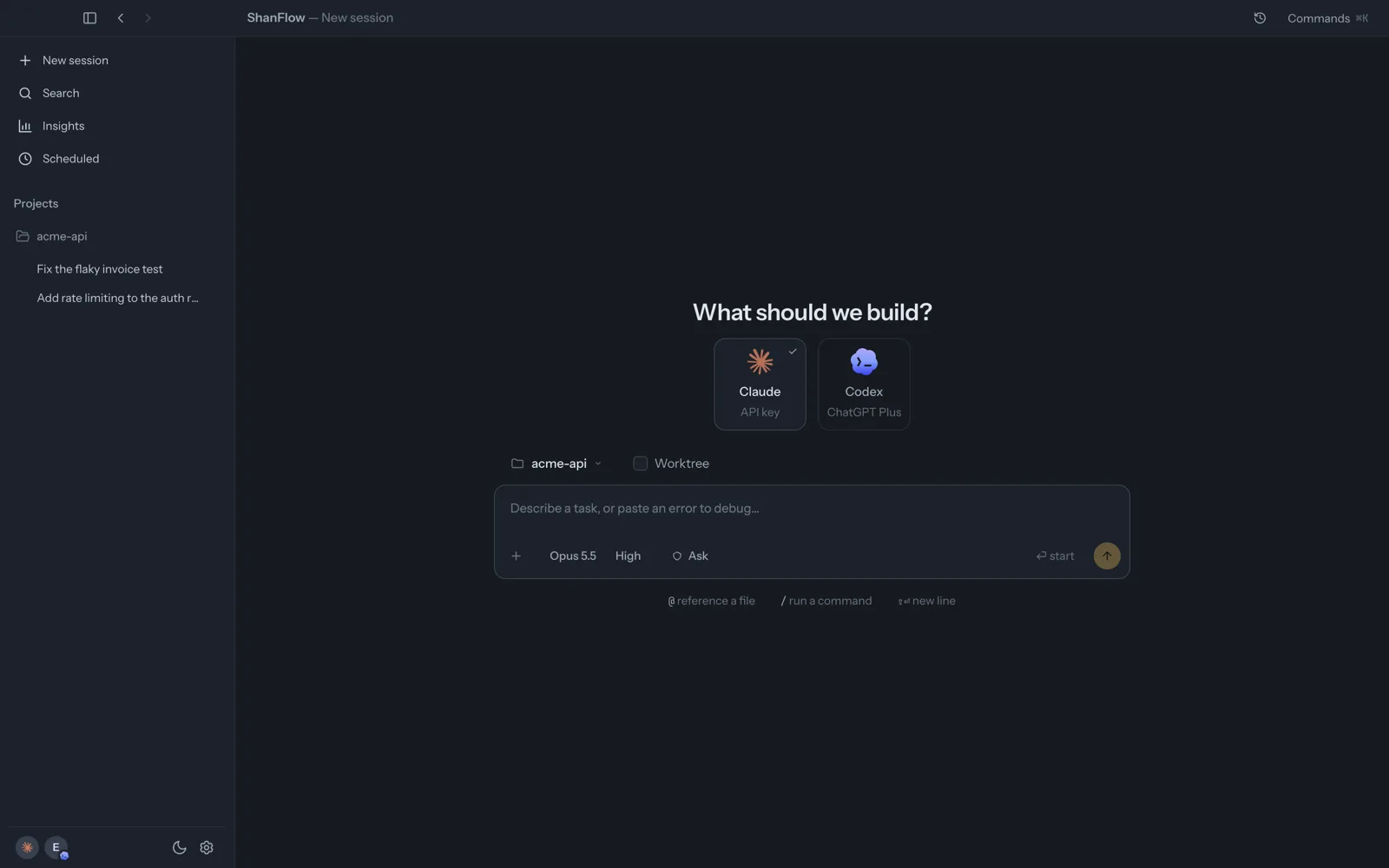
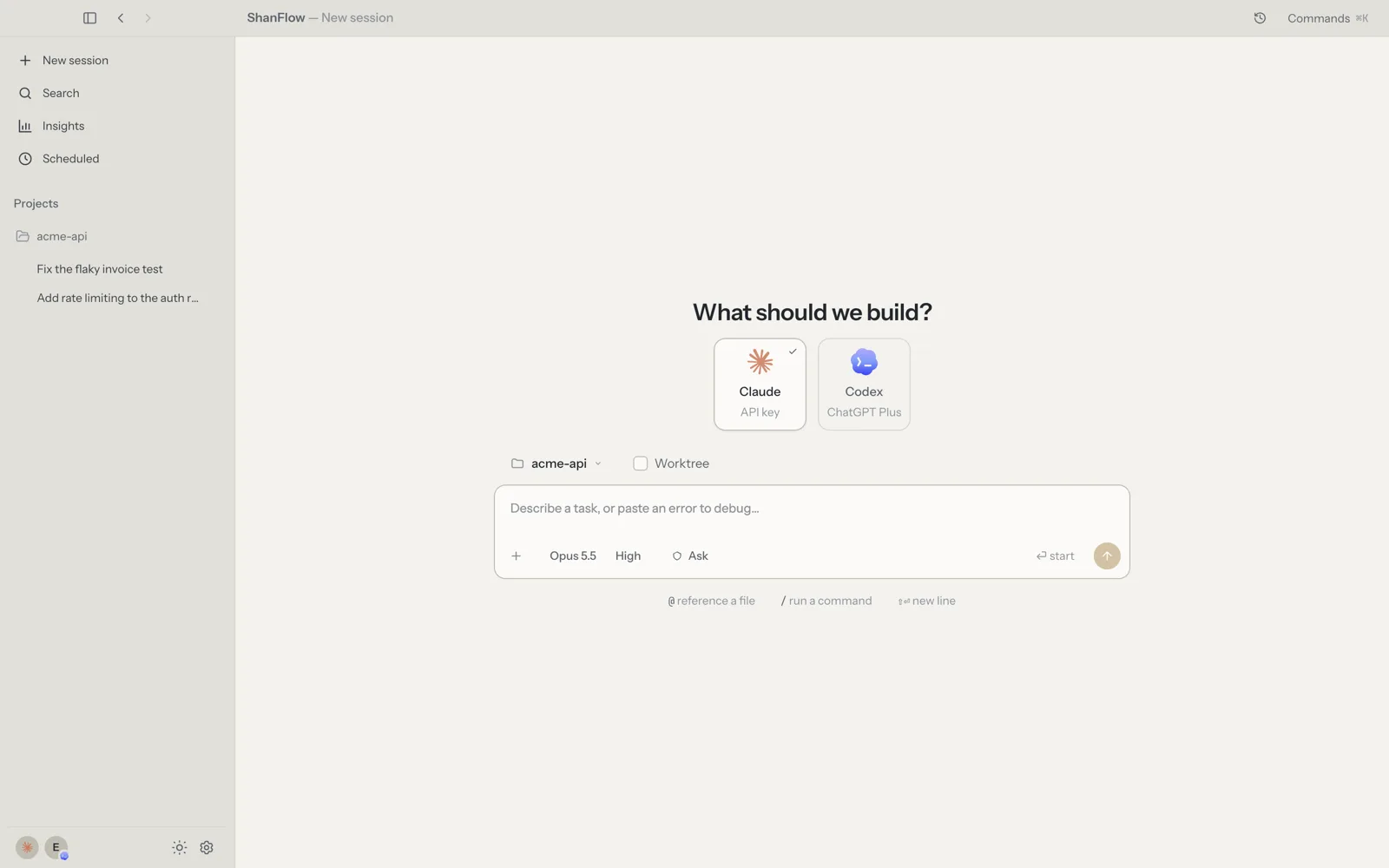
- Press ⌘N (macOS) / Ctrl+N (Windows), or choose New session.
- Pick the engine with the two tiles at the top, Claude or Codex. With one engine connected, you don't see a choice. A session keeps its engine.
- Check the project in the bar above the composer. Change it if needed.
- Describe the task the way you'd brief a colleague: what to change, where, and how you'll know it's done.
- Choose how much the agent may do, with the permission control under the composer. Ask permissions asks before every action. Accept edits lets it edit files and still asks before anything else. If you're unsure, start with Ask permissions. See Permissions.
- Press ⏎ to start.
The status line under the thread shows that the agent is working. You can look away. A session that needs you is marked in the sidebar.
While a turn runs:
- ⏎ queues your next message to run after this turn.
- ⌘⏎ (macOS) / Ctrl+⏎ (Windows) steers: it adds your message to the turn that is running.
- To stop, press the Stop button, or press Esc twice.
More in The thread and Composer.
Review and keep a change#
When the agent edits files, they show up in the Changes panel on the right. Open it with ⌘D (macOS) / Ctrl+D (Windows).
- Open a file in the list to read its diff.
- Use Include in commit to choose which files go in.
- Type a commit message and choose Commit.
ShanFlow never writes or reverts your files itself. The agent does. To undo a change, ask the agent, or go back to an earlier point (see Time travel). Changes needs a git repository; in a plain folder the panel says so.
Details in Changes and review.
Related#
- Core concepts: projects, sessions, workspaces and groups.
- License and account: the trial, Early Access and activating a license.
- Privacy and data: what leaves your machine.
- Troubleshooting: if something here doesn't work.