06 Work
Permissions
The agent asks before it does anything with consequences, unless you have told it not to. You decide how much it asks by choosing a permission mode, and you can answer each request once, for the session, or for good.
Approve or deny an action#
When the agent wants to run a command, edit files or call a tool that your mode does not allow, the turn pauses and a card appears in the thread. The status line says Waiting on you — permission: ….
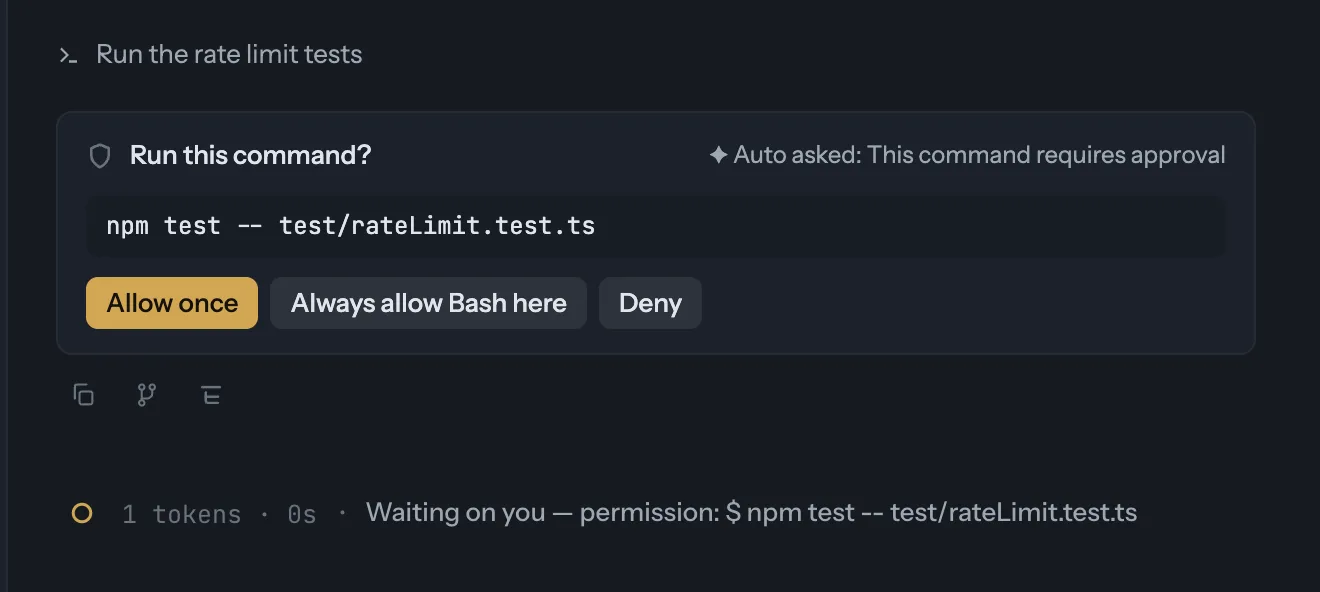
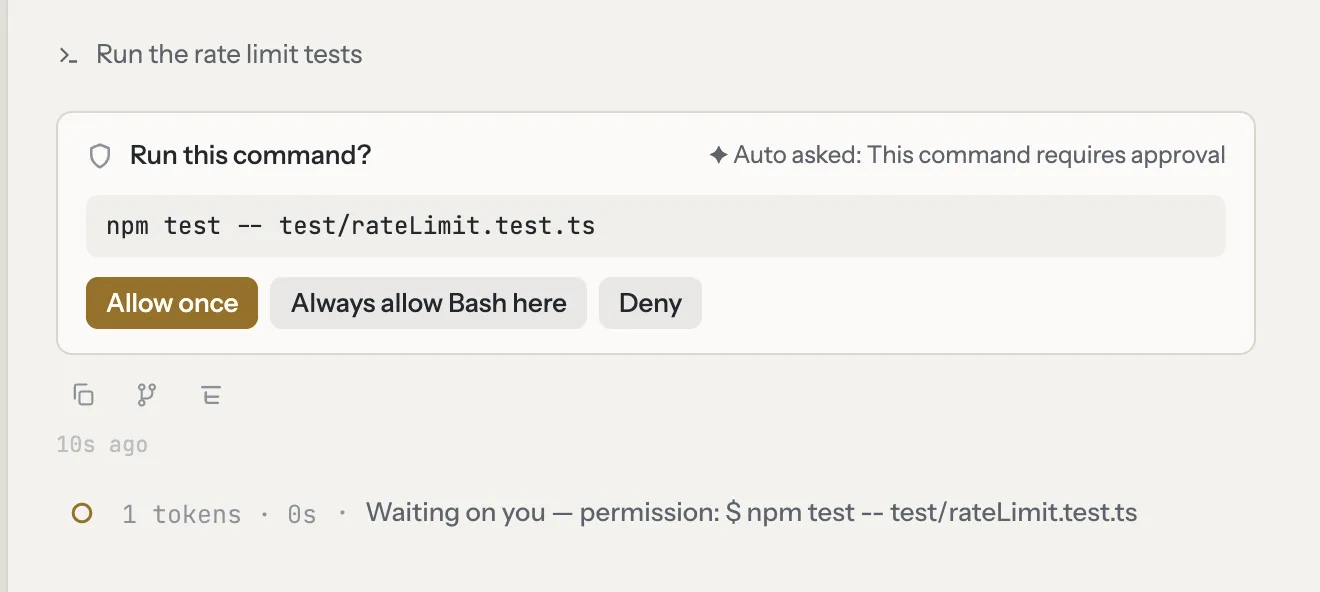
The card names the action ("Run this command?", "Edit 2 files?", "Fetch this page?") and shows the command or the files. Choose one:
- Allow once. The agent does this one action. Next time it asks again.
- Always allow … (for example Always allow Bash here). Saves a rule for this project; matching actions stop asking. The rule applies to this project only.
- Deny. The action does not run. The agent is told and carries on without it.
Press 1, 2 or 3 to pick by number, or use ↑, ↓ and Enter. Press Esc to leave the card waiting. Press Space on a lasting choice such as Always allow, so a stray key does not save a rule.
Some cards add more choices:
- In Codex sessions, a command card can also offer Allow this command for this session, and an always-choice that reads Allow always everywhere. Codex saves that one for every project, outside the sandbox, in
~/.codex/rules/default.rules. - A card for a website in the Browser offers Allow for this turn and Always allow … in this project.
- When an action carries a clear risk (deleting files, force-pushing, publishing, running code downloaded from the internet, writing outside the project), the card says so, for example "Can't be undone: deletes files." You must type a word such as
deletebefore Allow once turns on. These cards never offer an always-choice. - An action marked leaves your machine reaches the network or another outside service.
- A card from a sub-agent is tagged Subagent.
After you answer, the card shrinks to one line in the thread, such as Allowed once · npm test or Denied · rm -rf build. That record stays with the session.
If you are looking at another session, or the app is in the background, a waiting card still reaches you: the session shows a badge in the sidebar, and a system notification appears when the app is not in front. Turn the notification off in Settings → General → Notify when the agent needs you. Jump straight to a waiting card with ⌘⌥A (macOS) / Ctrl+Shift+W (Windows).
Pick a permission mode#
Click the mode name in the composer, or press ⌘⇧M (macOS) / Ctrl+Shift+M (Windows). The mode applies to the session you are in. To set the default for new sessions, open Settings → Permissions → Default permission mode; to set it for one project, use that project's Permissions settings.
| Mode | What it does |
|---|---|
| Plan | The agent explores and writes a plan but changes nothing until you approve the plan. Claude only. |
| Ask | Asks before every action with consequences. |
| Accept edits | File edits go ahead. Everything else still asks. |
| Auto | A safety check approves routine requests. Risky ones still ask you, with the reason shown. |
| Bypass | Asks about nothing. |
In Codex sessions there is no Plan mode, Ask is read-only (edits and anything outside the sandbox ask), and Auto means Codex's own reviewer approves or blocks risky calls without asking you.
Plan mode#
In Plan mode the agent cannot edit files or run commands. If it tries, the call is blocked, even if you saved an always-allow rule for that tool. When the plan is ready, a card appears: Approve this plan?, with the plan written out. Choose:
- Approve, auto-accept edits: the session leaves Plan mode and continues in Accept edits.
- Approve, ask before each edit: the session continues in Ask.
- Keep planning: the agent stays in Plan mode and refines the plan.
After you approve, the card becomes Plan approved · auto-accepting edits (or asking before each edit). Click View plan to read the plan again. If your mode approves plans by itself (Auto or Bypass), the card reads Plan approved automatically.
Auto mode#
An action the safety check lets through runs without a card. An action it escalates comes to you as an ordinary permission card, tagged ✦ Auto asked: and the reason. An action it refuses shows in the thread as Auto denied: <tool>, with the reason. Click Ask me instead to have the agent retry and ask you. A reopened session keeps the action row but may lose the "Auto denied" label.
Bypass#
Bypass skips every check. Nothing asks, including commands that delete or overwrite files. The mode shows with a crossed shield so you can see it. Use it only in a project you can afford to lose, or inside a sandbox.
In Codex, Bypass also runs without a sandbox: the mode is tagged Unsandboxed, with full file and network access.
Keep control of what runs#
- Network access (Codex). Commands in Codex's sandbox cannot reach the internet unless you allow it on a card for one turn, or turn on Network access in the project's Permissions settings.
- Sandbox (Claude, macOS). The project's Permissions settings include a Sandbox switch, with settings for what may run outside it. Type
/sandboxto open it. - Review sessions are read-only, and the composer shows Read-only in place of a mode.
See and remove saved rules#
Rules you save with Always allow … are listed under Remembered rules in the project's Permissions settings, each with the date and the session it came from. Click remove and the next matching action asks again. You can also type /permissions to open the list.
What always asks first#
A send to another session always asks first. When the agent wants to message another session, a card reads Send to "<session>"? and shows the message. Choose Send or Cancel. This happens in every mode, including Accept edits, Auto and Bypass.
There are two exceptions, and both are visible:
- Sessions you trust. Tick Don't ask again this session for <session> on the card, or click the trust button in the composer and tick the sessions you trust. Messages to them go without a card.
- A session's own nested sessions: the ones it started, and the one that started it.
Even then, the agent stops to check in with you if two sessions keep messaging each other without you.